I develop a lot of profile biographies, typically as a DOCX or some related format. The profile biographies are often too long for simple text. They can be paginated, perhaps with chapters and figures, and even indexes. RootsMagic cannot handle these documentation files. It simply displays a silly icon, and then it does - nothing. I cannot open the icon, and I cannot even find out where the file is located without some weird manipulations. This is stupidly awkward. Surely there must be a way to access such files, either by invoking the app, or some kind of simplified reader.

Add docx as File, not Media. You can then open it from inside RM by clicking on the Edit icon (looks like a pencil or a crayon). Actually, RM is not opening it. Rather, RM is telling your default dox program to open it. In my case, that’s Microsoft Word. In your case, it might be a different program.
1 Like
This is a silly failing of RM that it is too dumb to simply identify the file extension and correctly add it to media. FTM has always done this just fine and handles jpg, pdf, pages, etc files seamlessly on mac.
1 Like
how are you adding files to RM? via Drag N Drop or doing manually?
I have not seen issue using drag N drop method which is how I add 98% of my files
Thanks, you are correct. The file selection turns out to be necessary in order for documents to open properly. Now I am wondering about sound and video. I have those files too, and they never seemed to work before with RM. This makes me wonder about markdown documents (.md suffix) now. I will have to give those a try.
True, RM will not by itself display docx files but it can start ms word to display them .
Instead of double clicking the file icon for the file in RM, click on the edit (pencil) icon at the top of the window.
That will open the file in the associated app as determined by the OS
That raises the issue of the pencil icon. The RM doc says it’s for editing the file but it just displays the file in the associated app and you decide whether to edit it or not.
I have avoided the Drag-N-Drop method of adding media, because the file ends up in a directory that I dislike, or at least that is what used to happen. I have not tried it for years now. Instead, I first put the file in the directory where I want it to stay, and then I cut/paste the pathname to the add-media menu.
I have been using drag n drop method since ver 8.
Drag n Drop also will NOT Duplicate media which may occur in some versions of RM (not sure about 11 I have not tested)
You select where the file is and drag n drop– where ever the file is– is what RM sets file location so the RM is not changing the location – however if the user change the locations of the file then RM would not be aware of that change. Example you drag N drop from download dir then move to desired location – that would be the users fault not RM

1 Like
Hmm. Well, if Drag-N-Drop does not move or copy the file, then it is not the same drag-n-drop in Windows. I can see the problem now. A typical process is to import a file from some place, and Windows puts it into a directory called Downloads. If I do a Drag-N-Drop from Downloads, and RM just leaves it in Downloads, then later when I clean out the Downloads directory, the file gets moved somewhere else, like the Recycle Bin. The RM link gets broken, never to recover. Calling the process Drag-N-Drop is deceptive and false.
correct all all points except last one.
Calling the process Drag-N-Drop is deceptive and false.
Misunderstood (and miss-used) does not equal “deceptive and false.”
The same thing would be true regardless of which method you used to “link” file to RM.
If you delete or later move the file the same thing applies to all methods.
1 Like
If you download a file and leave it in the download folder you are running the risk of losing that file. To be clear RM only has a link to the file so if you want to save it you need to download it to your hard drive with a meaningful name into a location that you keep your genealogy files then you drag and drop it from there and RM will be happy and you won’t lose your files.
Downloaded files do not always go into the Download folder and that do not always have a default file name that the user can’t control. Sometimes, the user can specify the folder and file name for downloaded files. In those cases, I just download the the final destination folder and specify the final destination folder.
But more often than not, downloads do not provide any user control over the destination folder and file name. In such cases, i agree that it’s essential for the user to take action immediately after the download to move the file do it’s final destination folder and to give the file its final destination file name. Pretend your Downloads folder is getting cleared out every day, even if it isn’t. So pretend the contents of the Downloads folder are completely temporary, and take action accordingly.
1 Like
- I keep my downloads folder empty. Anything there is either used immediately and discarded or moved elsewhere to keep. Trash gets emptied at least daily.
- Files for the media folder are renamed, moved to the appropriate media subfolder (jones J smith m) and then linked to a fact in RM.
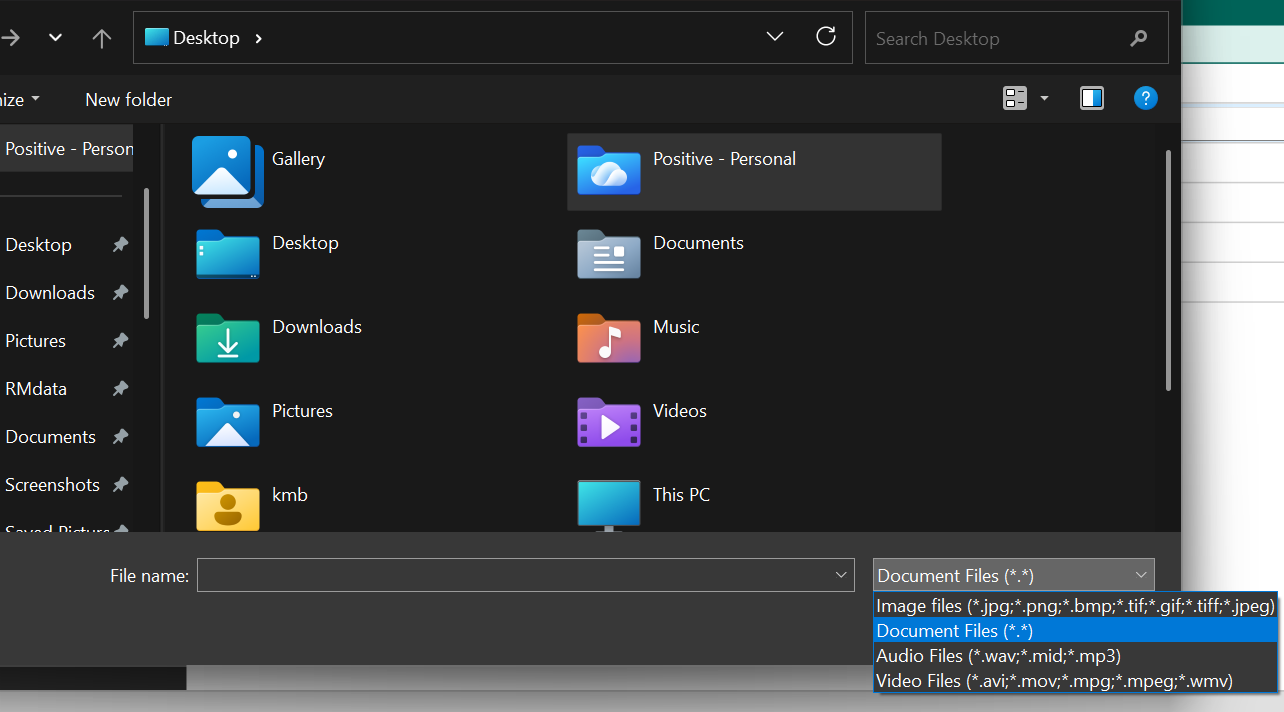
- When I tried adding a docx and pdf file to media by dragging that worked without the silly request to tell RM what kind the files were. This means the screen requiring you to tell RM what kind of file is being added is not needed.
Well, on a Windows machine it is a built-in “feature” of the file picker to offer filtered views of categories of file-types to avoid a cluttered view or mistaken possibly incompatible file choice:

You have good advice. But I think you neglect the purpose of the default folder for downloads. I get a lot of emails with attachments or links that require a download. Without knowing anything about the file, it is a matter of guesswork to figure out where to store the file. Many of them are just temporary files (app installations are one example), so they get discarded after use. So, I download to the default directory, and then judge later what do to with it. When I transfer the file to a more permanent directory, I use “drag-and-drop”. This is a typical maneuver in Windows, or any other modern OS. This is why the so-called “drag-and-drop” feature in RootsMagic is deceptive. It does not actually “drag” a file anywhere.
And Add doesn’t add a file either. Both are methods to get “a path” to a file (not to copy/move/drag/get) any filetype. Then it makes up a thumbnail image, stores the thumb in the database and stores that original file “path” as a reference for the saved thumbnail.
2 Likes
But they do still get added with a type - like File or Image. What type did RM choose for you. I’ve never done it that way.
on mac RM defaults to image and greys out other filetypes unless you change the RM type. Maybe this is default Windows behavior but it is just dumb. FTM happily just links to whatever file type you designate.