These steps will rename the file and update the filename field simultaneously:
- Click on the Filename field of the Edit Media pane and then on the “document icon” at the far right (See image below.)
- Navigate to the media file that you want to rename
- Right-click and choose the “rename” option
- Rename the file and select the “Open” button
- I always click on the green checkmark out of habit but it seems like any action (including the Close button, exiting out of the Media window back to the Edit Person window, or selecting a different media file from the Media Window) will save the change.
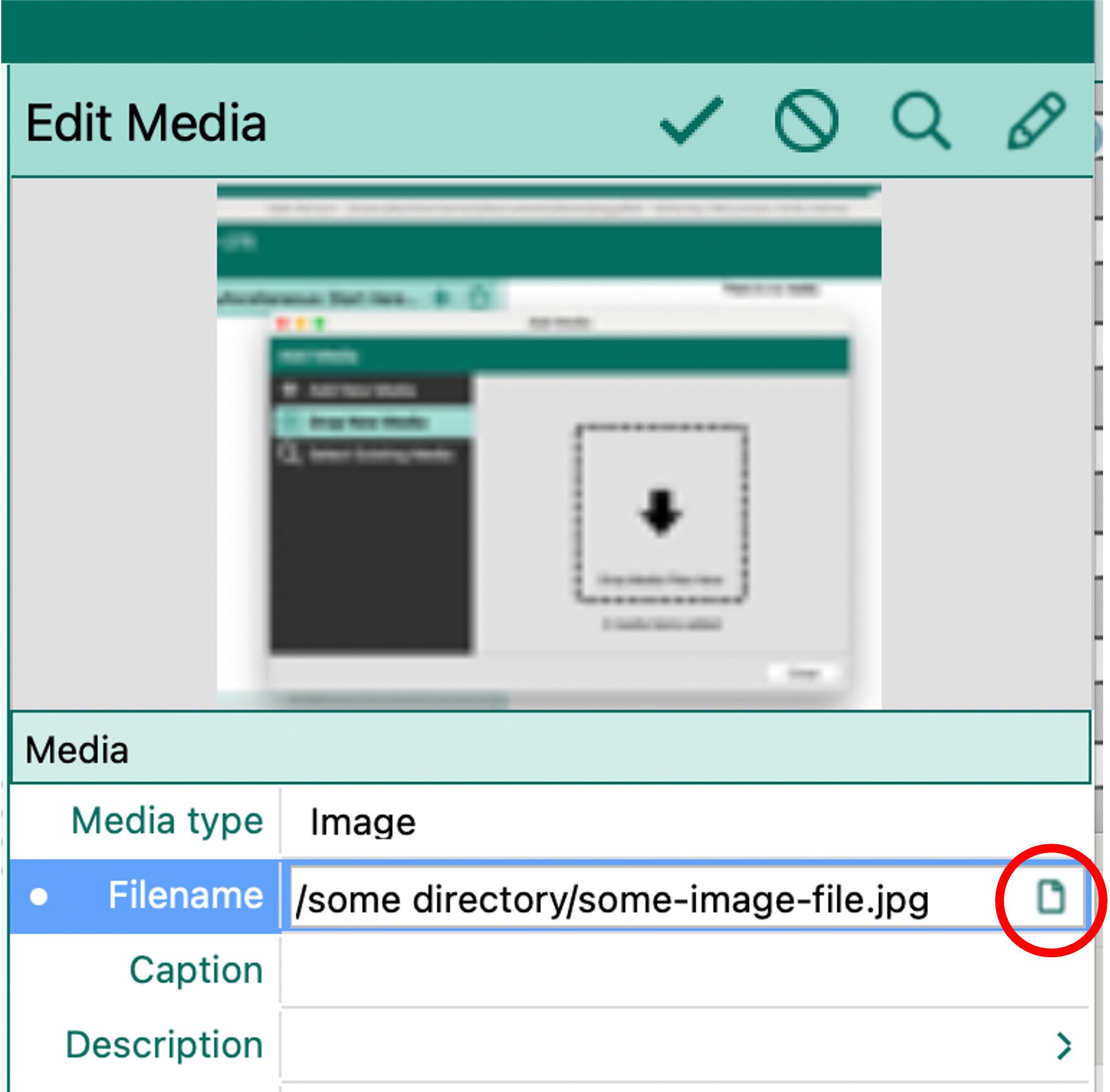
Note that when you click on the document icon, the OS file manager will open to the default media folder defined in RM Settings. If you are doing a lot of changes you might want to consider temporarily adjusting the default media folder setting to the default treeshare download folder (assuming that’s where your media files are located). This will speed up the rename process. However, it’s a bit of double edged sword because of RM use of relative paths. (One of the relative paths that RM utilizes is the location of the media file relative to the default media folder.) So, if you change the default media folder setting, when you’re all done, after setting the default media file back to where it was, you’ll want to run the “Fix Broken Media Links” tool.
Also, for what it’s worth, my ‘post-treeshare’ workflow is to update source/citation details and rename the media file including moving it out of the default treeshare download folder. That way I know that any media file in that download folder has actions pending. I don’t believe that you can change the folder using the above process, so if you want to establish a different folder structure that needs to be a separate follow-on action along with a subsequent run of the “Fix Broken Media Links” tool.